User Guide
CLI-Tacts is a lightweight application to manage your CS2040S students! It is optimised for Command Line Interface usage (CLI), while having the benefits of a Graphical User Interface (GUI). The best of both worlds, quickness of a CLI and visualisation of a GUI! For fast typers, CLI-Tacts helps you optimise your workflow better than traditional GUI-only grading portals.
The primary users are CS2040S Teaching Assistants who:
- Quick start
-
Features
- Viewing help :
help - Adding a person:
add - Listing all persons :
list - Editing a person :
edit -
Locating students by name, tutorial group, email, or telegram handle:
find - Deleting a person :
delete -
Marking attendance :
mark -
Unmarking attendance :
unmark - Clearing all entries :
clear - Exiting the program :
exit - Attendance Statistics Panel
-
Exporting student data :
export - Saving the data
- Editing the data file
- Archiving data files
[coming in v2.0]
- Viewing help :
- FAQ
- Known issues
- Command summary
Quick start
-
Ensure you have Java
17or above installed in your Computer.
Mac users: Ensure you have the precise JDK version prescribed here. -
Download the latest CLI-Tacts
.jarfile from your module team or release page. -
Copy the file to the folder you want to use as the home folder for CLI-Tacts.
-
Open a command terminal,
cdinto the folder you put the jar file in, and use thejava -jar CLI-tacts.jarcommand to run the application.
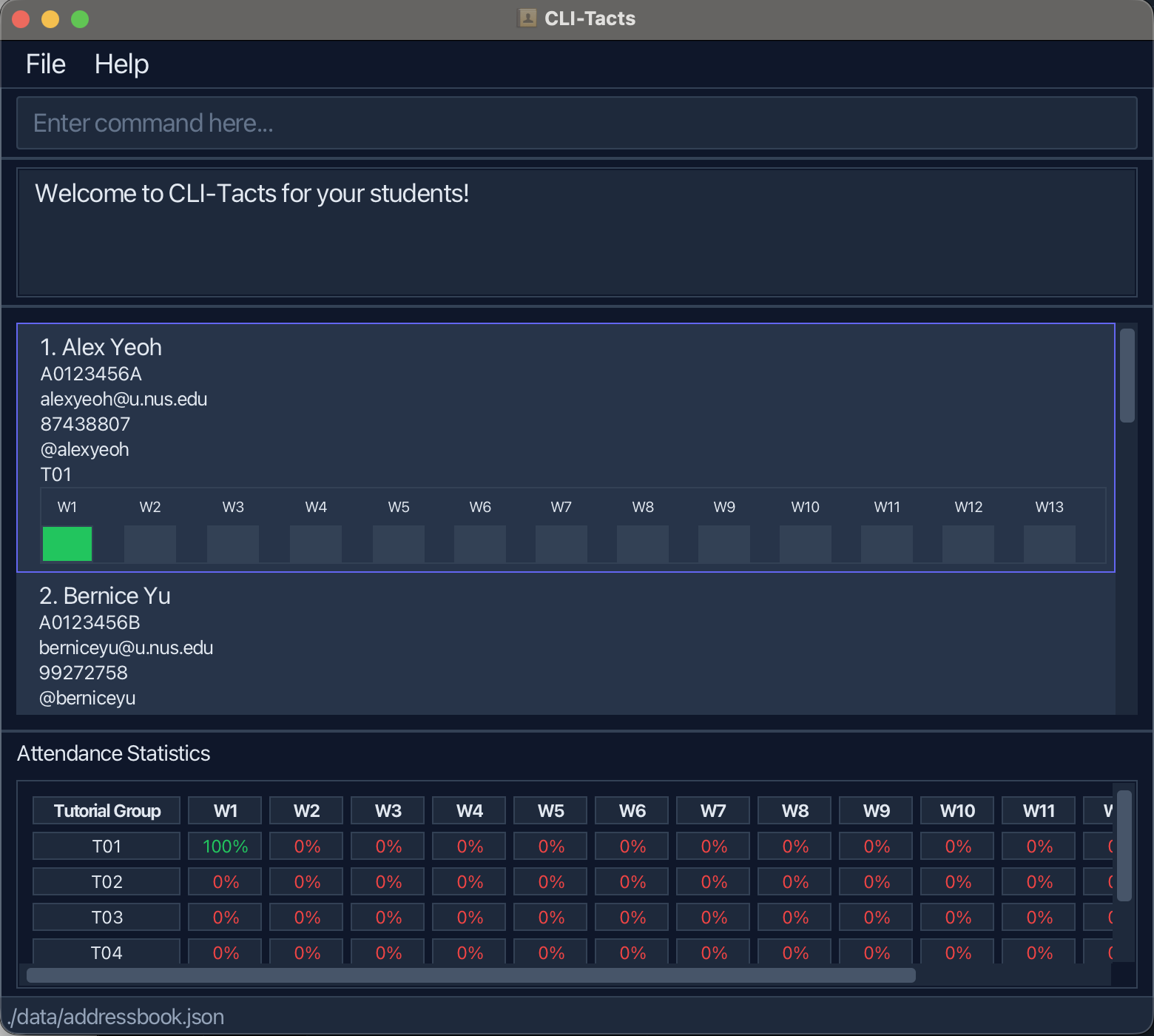
A GUI similar to the below should appear in a few seconds. Note how the app contains some sample data.
-
Type the command in the command box and press Enter to execute it. e.g. typing
helpand pressing Enter will open the help window.
Some example commands you can try:-
list: Lists all contacts. -
add n/John Doe i/A0123456X e/johnd@u.nus.edu p/98765432 th/@johndoe t/T01: Adds studentJohn Doeto CLI-Tacts. -
mark 1 w/1: Marks the first student’s attedance for week 1. -
delete 3: Deletes the 3rd contact shown in the current list. -
clear: Deletes all contacts. -
exit: Exits the app.
-
-
Refer to the Features below for details of each command.
Features
 Notes about the command format:
-
Words in
UPPER_CASEare the parameters to be supplied by the user.
e.g. inadd n/NAME,NAMEis a parameter which can be used asadd n/John Doe. -
Items in square brackets are optional.
e.gn/NAME [th/TELE_HANDLE]can be used asn/John Doe th/@johndoeor asn/John Doe. -
Items with
… after them can be used multiple times including zero times.
Currently, CLI-Tacts uses a single tutorial group per student, so you will not see repeatedt/prefixes. -
Parameters can be in any order for
add,editandfindcommands.
e.g. if the command specifiesn/NAME p/PHONE_NUMBER,p/PHONE_NUMBER n/NAMEis also acceptable. -
Extraneous parameters for commands that do not take in parameters (such as
help,list,exit,exportandclear) will be ignored.
e.g. if the command specifieshelp 123, it will be interpreted ashelp. -
If you are using a PDF version of this document, be careful when copying and pasting commands that span multiple lines as space characters surrounding line-breaks may be omitted when copied over to the application.
Viewing help : help
Shows a message explaining how to access the help page.

Format: help
Adding a person: add
Adds a student to CLI-Tacts. Telegram handle is optional (useful for contacting students quickly, but not required).
Format:
add n/NAME i/STUDENT_ID e/EMAIL p/PHONE_NUMBER [th/TELE_HANDLE] t/TUTORIAL_GROUP
Where:
-
NAMEshould only contain alphanumeric characters, spaces, hyphens (-), commas (,), and apostrophes (') -
STUDENT_IDmust start with anaorA, followed by 7 digits and end with 1 letter. (e.g.A0123456X). -
EMAILmust be a valid NUS email ending with@u.nus.edu(e.g.alice@u.nus.edu) -
PHONE_NUMBERmust be exactly 8 digits -
TELE_HANDLE(optional) must be a valid Telegram handle that starts with@and has 5 to 32 characters. -
TUTORIAL_GROUPfollows a strict format that starts withTfollowed by exactly 2 digits (e.g.T01,T12) -
TUTORIAL_GROUPis case-sensitive (T01is valid,t01is invalid)
Notes for add arguments:
-
EMAILmatching/validation is case-insensitive for the local-part and domain (same behavior asfind e/) -
TELE_HANDLEmatching/validation is case-insensitive and handles are stored in lowercase (same behavior asfind th/)
Examples:
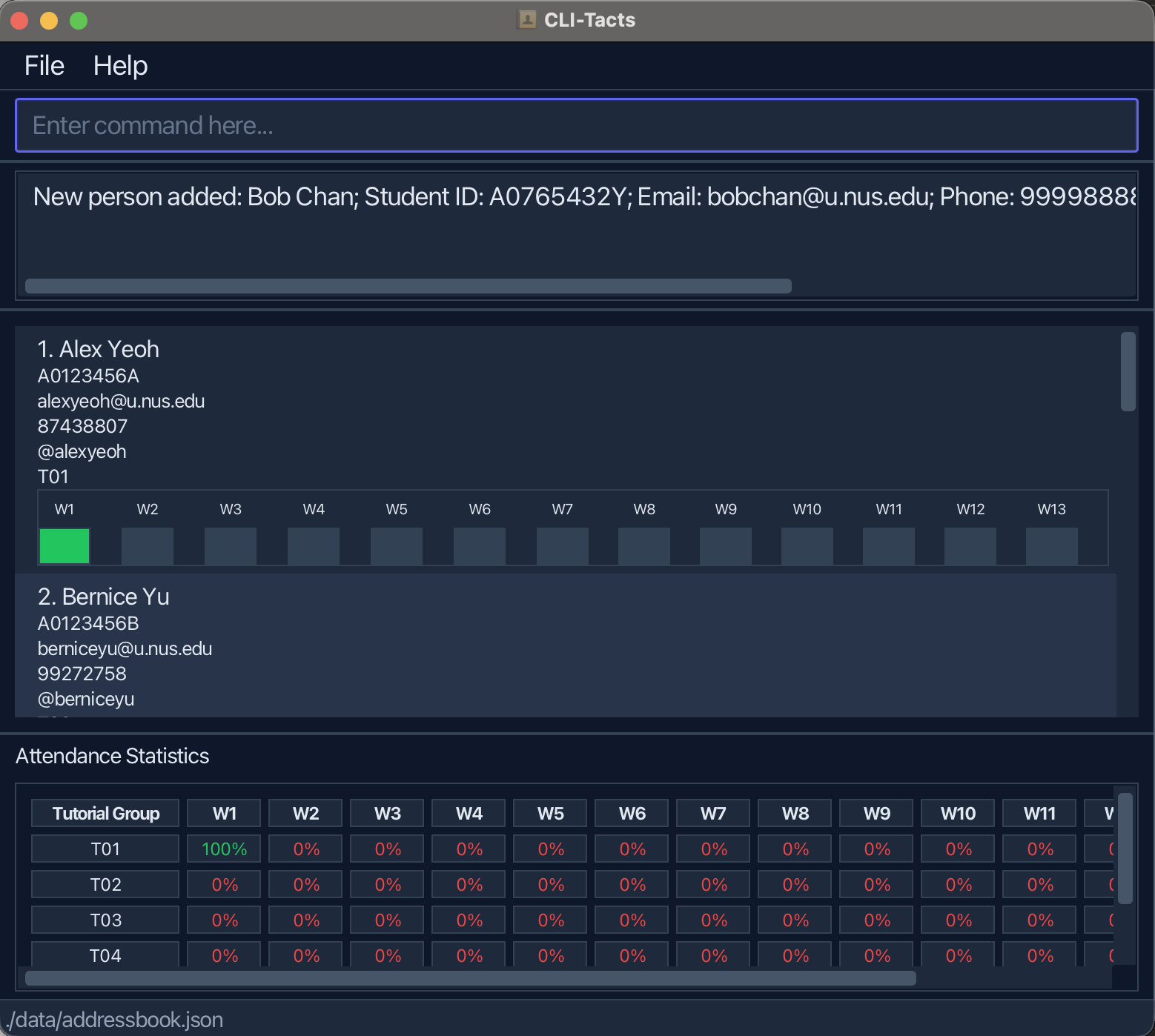
add n/Amy Bee i/A0123456X e/amy@u.nus.edu p/11111111 th/@amy_bee t/T01add n/Bob Chan i/A0765432Y e/bobchan@u.nus.edu p/99998888 th/@bobchan t/T02
Listing all persons : list
Shows a list of all students currently in CLI-Tacts.
Format: list
Editing a person : edit
Edits an existing student in CLI-Tacts.
Format:
edit INDEX [n/NAME] [i/STUDENT_ID] [e/EMAIL] [p/PHONE] [th/TELE_HANDLE] [t/TUTORIAL_GROUP]
- Edits the student at the specified
INDEX. The index refers to the index number shown in the displayed student list. The index must be a positive integer 1, 2, 3, … - At least one of the optional fields must be provided.
- Existing values will be updated to the input values.
-
STUDENT_ID,EMAIL,PHONE,TELE_HANDLEandTUTORIAL_GROUPare validated with the same rules as inadd.
Examples:
-
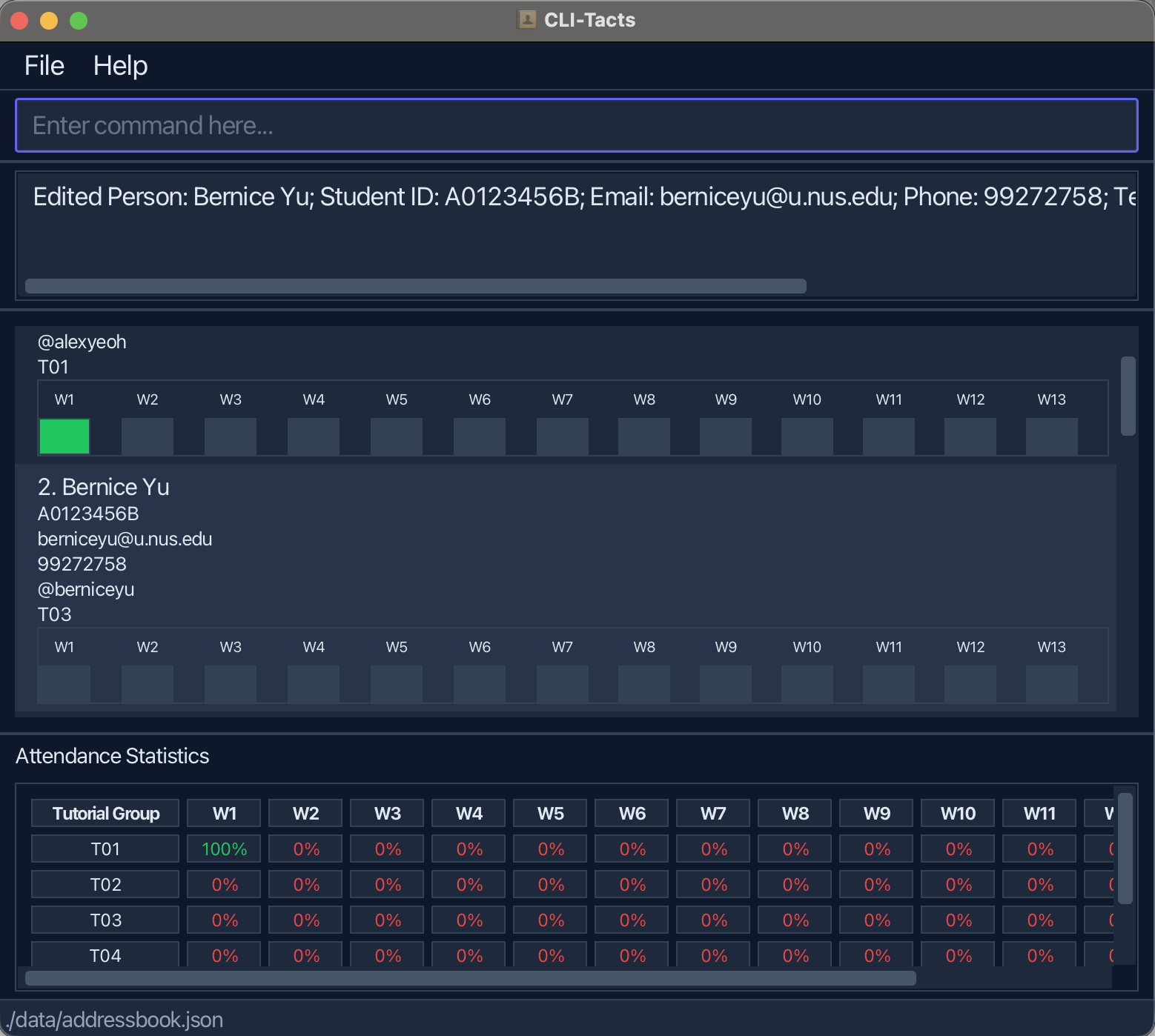
edit 1 p/91234567 e/alice_new@u.nus.eduEdits the phone number and email address of the 1st student. -
edit 2 t/T03Moves the 2nd student to tutorial groupT03.
Locating students by name, tutorial group, email, or telegram handle: find
Allows a TA to filter the student list to find specific individuals based on their name, tutorial group, NUS email, or Telegram handle. This is useful when the matric number (student ID) is not immediately known.
Formats:
find n/NAME_KEYWORD [MORE_KEYWORDS]...find t/TUTORIAL_GROUPfind e/EMAILfind th/TELE_HANDLE- You can combine any of the above prefixes in one command (e.g.
find n/john t/T01 e/alice@u.nus.edu th/@alice_bot).
At least one of n/, t/, e/, or th/ must be present.
Name (n/) filter
-
Words after
n/: you can type one or more words separated by spaces. Each word is a prefix checked against the student’s full name (first name, last name, etc.); every word you type must match some name part. Letter case does not matter. -
With tutorial group: use
t/in the same command when you also want to filter by group (e.g.find n/John t/T01).
If an invalid name keyword is supplied, CLI-Tacts shows an error similar to:
Invalid name! Search terms should only contain alphanumeric characters, spaces, hyphens (-), commas (,), and apostrophes (‘) only.
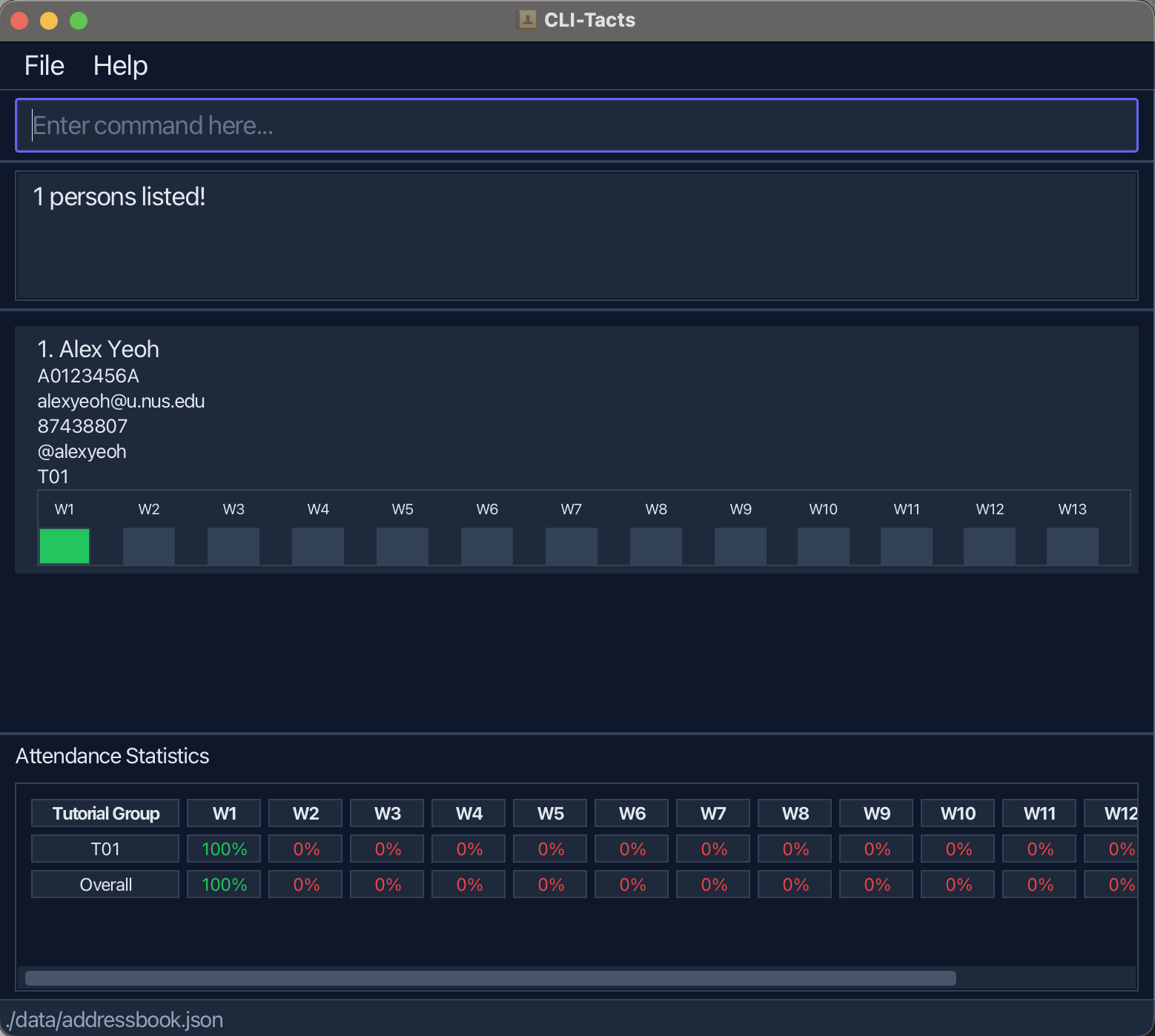
Example after applying find n/Ale:
Tutorial group (t/) filter
-
Input restrictions: same format and case-sensitivity rules as
TUTORIAL_GROUPinadd/edit.
If an invalid tutorial group is supplied, CLI-Tacts shows an error similar to:
Invalid tutorial group. Format should be T followed by two digits (e.g., T01).
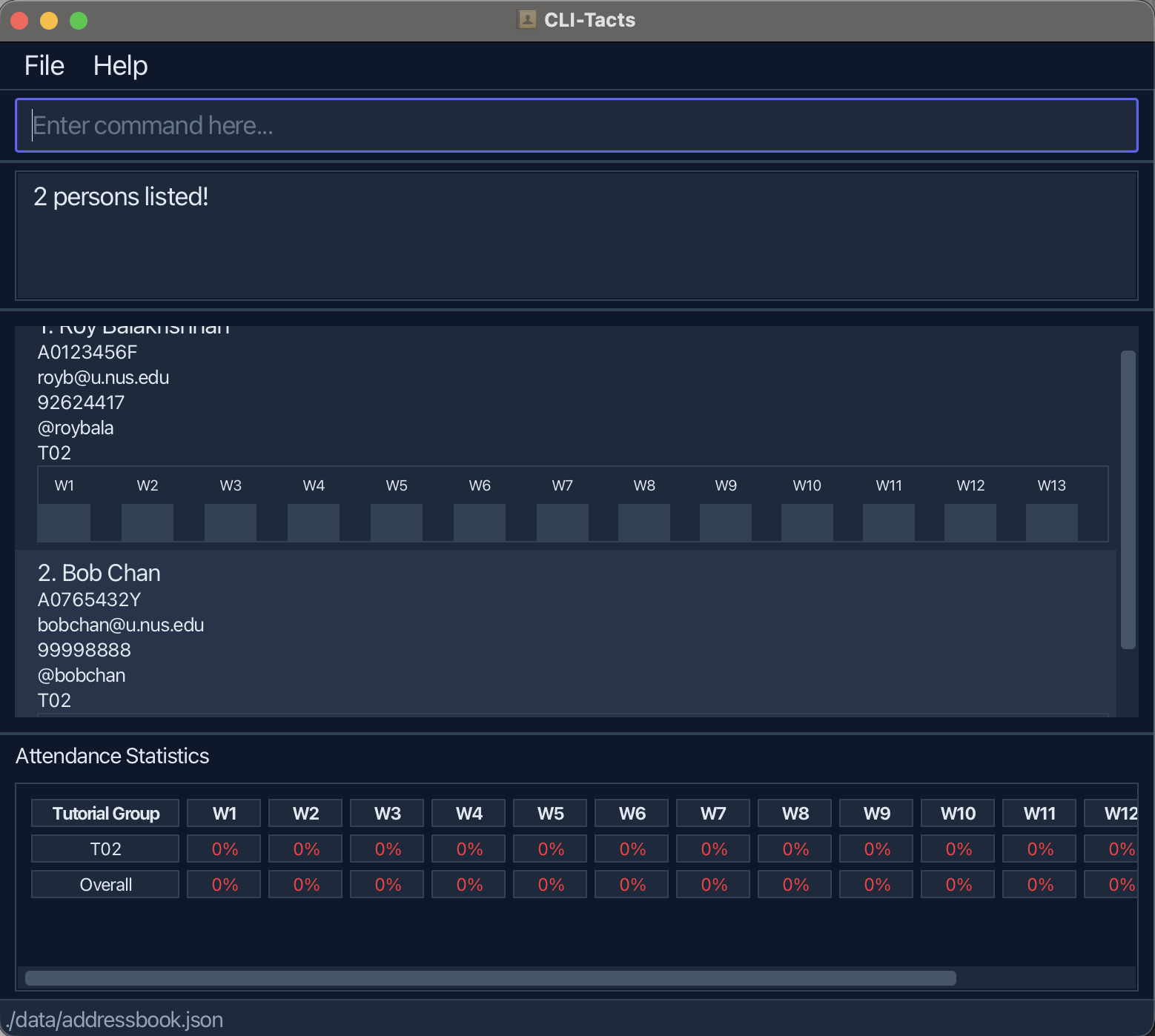
Example after applying find t/T02:
Email (e/) filter
-
Input restrictions: same format and case-sensitivity rules as
EMAILinadd/edit. -
Prefix matching: the value after
e/is treated as a prefix match on email (case-insensitive).
For example,find e/Chacan matchcharlotte@u.nus.edu.
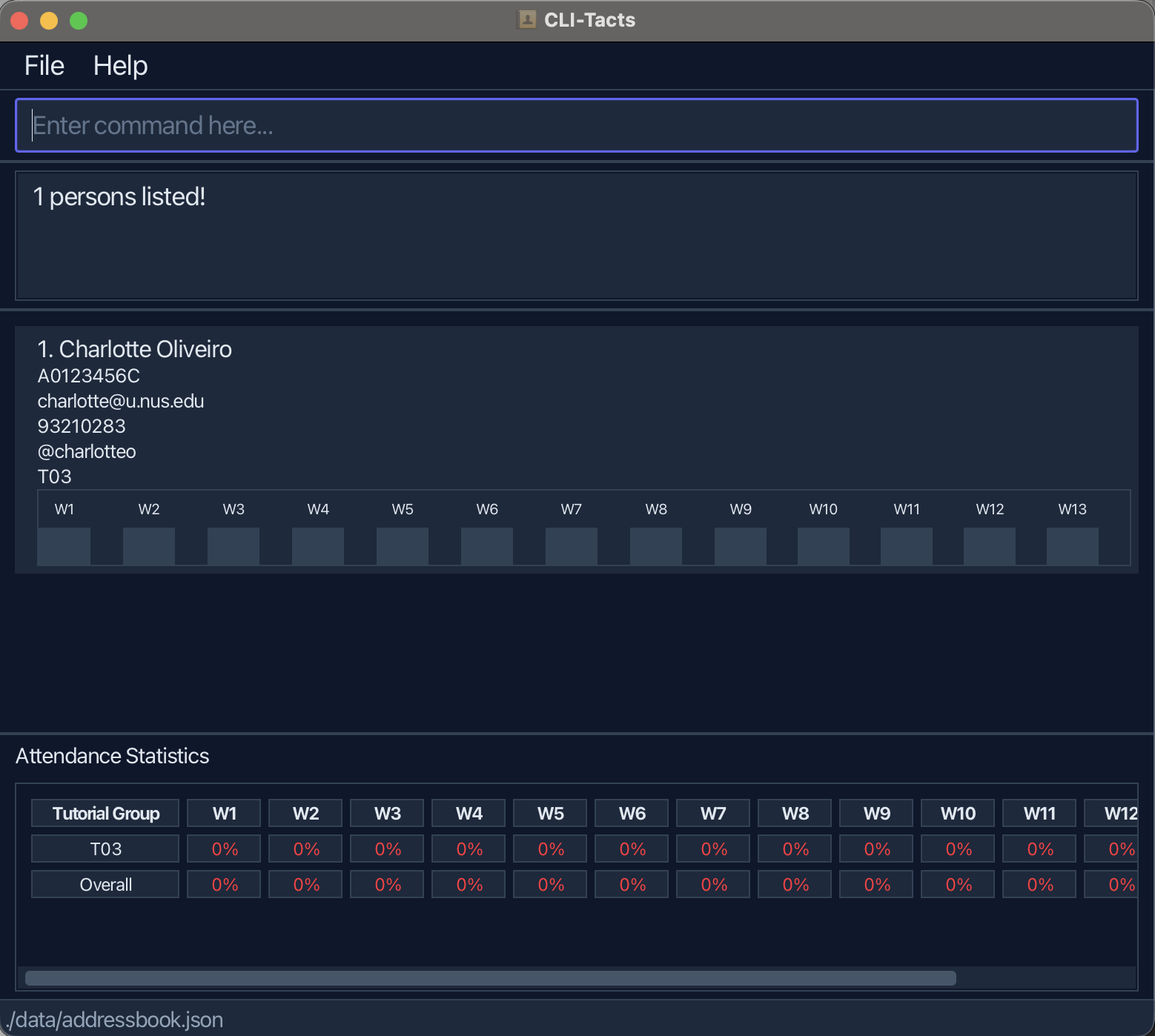
Example after applying find e/Cha:
Telegram handle (th/) filter
-
Input restrictions: same format and case-sensitivity rules as
TELE_HANDLEinadd/edit. -
Prefix matching: the value after
th/is treated as a prefix match on Telegram handle (case-insensitive).
For example,find th/@rocan match@roybala.
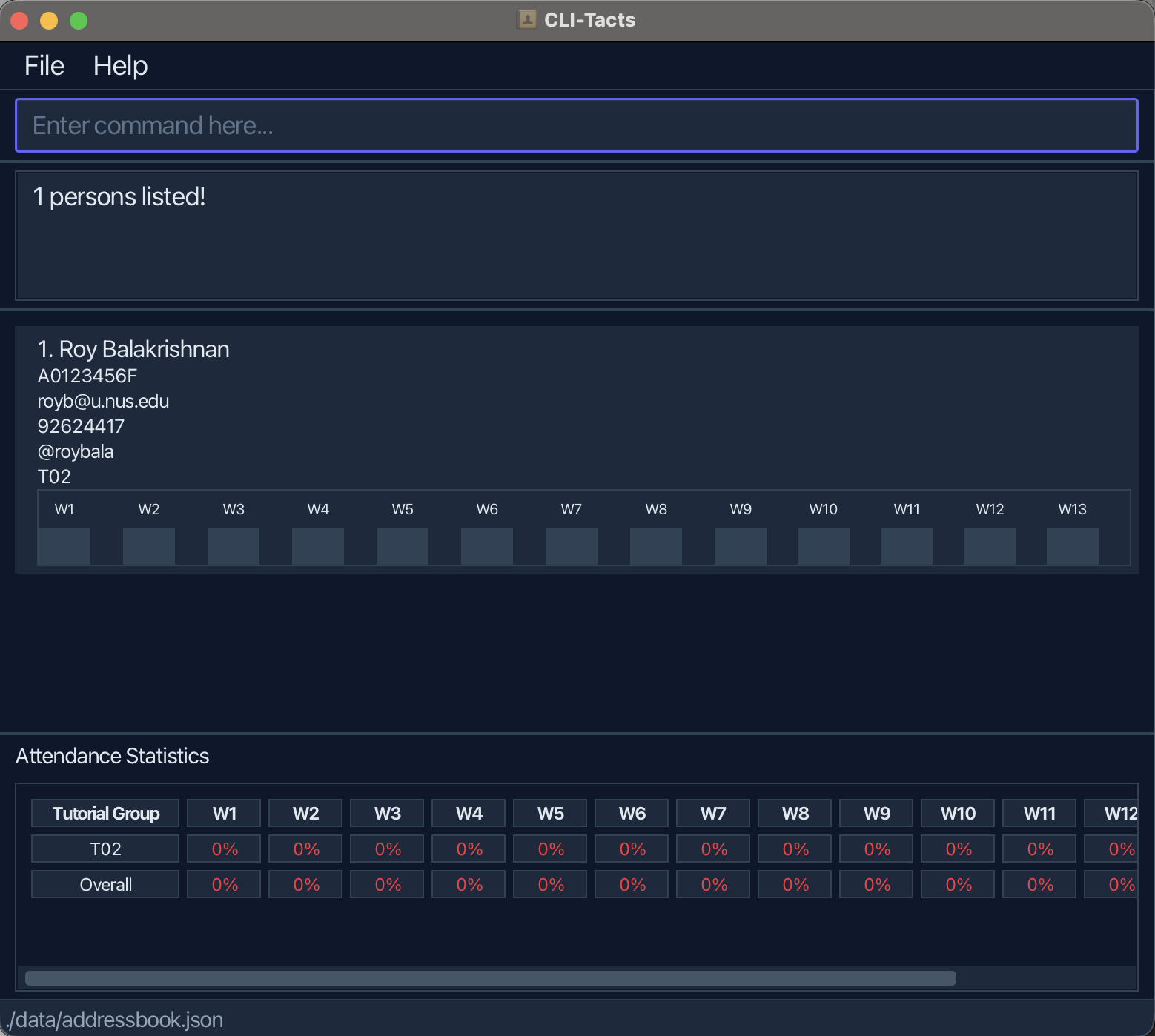
Example after applying find th/@ro:
Combined filters
- When multiple filters are present, CLI-Tacts returns students who match all specified filter categories (AND across
n/,t/,e/,th/). - On success, the status bar shows e.g.
5 persons listed!and the list shows only matching students. - If no students match, the list becomes empty and the status shows
0 persons listed!.
Examples:
-
find n/j— finds students whose name has a part starting withj. -
find n/John— finds students whose name has a part starting withJohn. -
find n/John Do— finds students whose name has a part starting withJohnand a part starting withDo. -
find t/T01— finds all students from tutorial groupT01. -
find e/alice@u.nus.edu— finds the student with that email (if present). -
find th/@benson_meier— finds the student with that Telegram handle (if present). -
find n/Tan— finds students whose name has a part starting withTan. -
find n/john t/T01— finds students whose name matchesjohnand who are in tutorial groupT01.
Deleting a person : delete
Deletes the specified student from CLI-Tacts.
Format: delete INDEX
- Deletes the student at the specified
INDEX. - The index refers to the index number shown in the displayed student list.
- The index must be a positive integer 1, 2, 3, …
Examples:
-
listfollowed bydelete 2deletes the 2nd person in the address book. -
find n/Betsyfollowed bydelete 1deletes the 1st person in the results of thefindcommand.
Marking attendance : mark
CLI-Tacts supports three ways to mark attendance for a given week (positive integer, typically 1–13):
Mark one student (by index)
Format: mark INDEX w/WEEK
-
INDEXis the position in the currently displayed student list (list,find, …). - Use this when you want to mark a specific row. Running
markagain for the same student and same week will show an error.
After a successful mark, the list filter resets to show everyone again.
Mark multiple students (by indices)
Format: mark INDEX1 INDEX2 ... w/WEEK
- Provide two or more space-separated indices from the currently displayed student list.
- Students already marked for that week are skipped (no error). The result message states how many were updated and how many were already recorded.
- Duplicate indices are counted only once (the duplicate is treated as already-recorded).
- If any index is out of bounds, CLI-Tacts shows an error and no attendance is changed.
Mark all students in a tutorial group
Format: mark t/TUTORIAL_GROUP w/WEEK
-
TUTORIAL_GROUPuses the sameT+ two digits rule as inadd/edit/find(e.g.T01,T12). - Applies to every student stored with that tutorial group, not only those visible after a
find. - Students already marked for that week are skipped (no error). The result message states how many were updated and how many were already recorded.
- If no student has that tutorial group, CLI-Tacts shows an error.
Notes
- Attendance updates and saving happen immediately after the command succeeds.
- For the index forms, use
find(orlist) first if you need a smaller list before choosing indices.
Examples (single student):
-
mark 1 w/2— marks the 1st student in the displayed list for week 2. -
find n/Johnfollowed bymark 1 w/1— among students named “John” in the filtered list, marks the 1st for week 1. -
find t/T01followed bymark 3 w/4— in the T01-only list, marks the 3rd student for week 4.
Examples (multiple students):
-
mark 1 2 3 w/5— marks students at positions 1, 2, and 3 in the displayed list for week 5. -
find t/T01followed bymark 1 2 w/3— in the T01-filtered list, marks the 1st and 2nd students for week 3.
Example (whole group):
-
mark t/T02 w/2— marks all students in tutorial groupT02for week 2.
Attendance tracking
Attendance is stored per week. Each week can be marked at most once per student. The single-index form shows an error if you repeat the same week for the same student. The multiple-index and group forms skip already-marked students and report counts instead.
Unmarking attendance : unmark
Unmarks a student’s attendance for a specific week during a tutorial session.
Formats:
unmark INDEX w/WEEKunmark t/TUTORIAL_GROUP w/WEEK
Where:
-
INDEXrefers to the index number shown in the displayed student list and must be a positive integer 1, 2, 3, …​ -
WEEKis the week number to unmark attendance for and must be a positive integer -
TUTORIAL_GROUPmust beTfollowed by exactly 2 digits (e.g.,T01,T12)
Important notes:
- If the student is already unmarked for the specified week, CLI-Tacts will show an error.
- For group unmark,
t/is required (e.g.,unmark t/T01 w/2). - Group unmark errors if there are no students in the specified tutorial group, or if all students are already unmarked for that week.
Examples:
-
unmark 1 w/2— unmarks the 1st student in the displayed list for week 2. -
unmark t/T01 w/4— unmarks attendance for all marked students in tutorial group T01 for week 4.
Clearing all entries : clear
Clears all entries from CLI-Tacts.
Format: clear
Exiting the program : exit
Exits the program.
Format: exit
Attendance Statistics Panel
The Attendance Statistics Panel is displayed at the bottom of the main window and updates automatically whenever the student list changes (e.g. after a mark, unmark, add, delete, or find command).
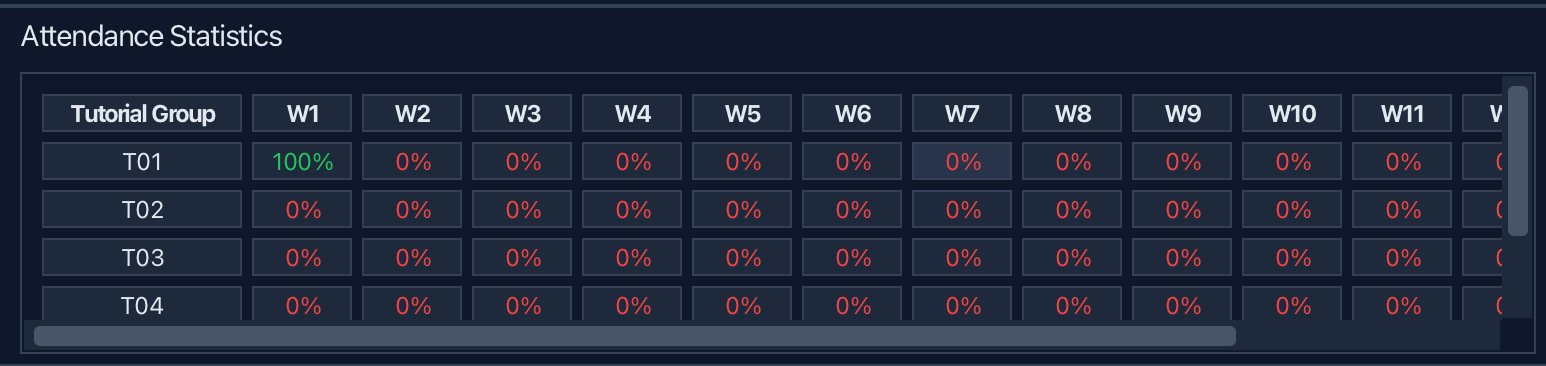
What it shows
| Column | Description |
|---|---|
| Tutorial Group | The tutorial group code (e.g. T01). One row per group, sorted alphabetically. |
| W1 – W13 | The attendance rate for that tutorial group in each week, shown as a percentage of students present (e.g. 75% means 3 out of 4 students were marked present). |
| Rate | The overall attendance rate for that tutorial group across all 13 weeks combined. |
| Overall (last row) | The attendance rate across all students and all weeks. Each week column shows the percentage of all students present that week; the Rate column shows the global average. |
What to expect
- A value of
0%for a week means no student in that group has been marked present yet — this is the default before anymarkcommand is run. - The panel reflects the currently filtered list. If you use
findto narrow down to a subset of students, the statistics will update to reflect only those students. - The panel scrolls horizontally if the window is too narrow to show all 13 weeks at once.
Exporting student data : export
Exports all student data to a CSV file named export.csv in the same folder as the JAR file.
Format: export
CSV file format
The file contains one header row followed by one row per student:
| Column | Description |
|---|---|
Student |
Full name of the student |
StudentID |
Student ID (e.g. A0123456X) |
Email |
NUS email address |
Tutorial |
Tutorial group (e.g. T01) |
Week1 – Week13
|
Attendance for each week: 1 = present, 0 = absent |
Notes
- The export always includes all students in the address book, regardless of any active
findfilter. - If
export.csvalready exists in the folder, it will be overwritten. - All string fields are wrapped in double quotes in the CSV output.
Example output (export.csv):
Student,StudentID,Email,Tutorial,Week1,Week2,...,Week13
"Alice Pauline","A0123456A","alice@u.nus.edu","T01",1,0,0,0,0,0,0,0,0,0,0,0,0
"Benson Meier","A0123456B","johnd@u.nus.edu","T02",0,0,0,0,0,0,0,0,0,0,0,0,0
Saving the data
CLI-Tacts data are saved in the hard disk automatically after any command that changes the data. There is no need to save manually.
Editing the data file
CLI-Tacts data are saved automatically as a JSON file [JAR file location]/data/addressbook.json. Advanced users are welcome to update data directly by editing that data file.
 Caution:
If your changes to the data file make its format invalid, CLI-Tacts will discard all data and start with an empty data file at the next run. Hence, it is recommended to take a backup of the file before editing it.
Caution:
If your changes to the data file make its format invalid, CLI-Tacts will discard all data and start with an empty data file at the next run. Hence, it is recommended to take a backup of the file before editing it.Furthermore, certain edits can cause CLI-Tacts to behave in unexpected ways (e.g., if a value entered is outside of the acceptable range). Therefore, edit the data file only if you are confident that you can update it correctly.
Archiving data files [coming in v2.0]
Details coming soon …
FAQ
Q: How do I transfer my data to another Computer?
A: Install the app in the other computer and overwrite the empty data file it creates with the file that contains the data of your previous CLI-Tacts home folder.
Known issues
-
When using multiple screens, if you move the application to a secondary screen, and later switch to using only the primary screen, the GUI will open off-screen. The remedy is to delete the
preferences.jsonfile created by the application before running the application again. -
If you minimize the Help Window and then run the
helpcommand (or use theHelpmenu, or the keyboard shortcutF1) again, the original Help Window will remain minimized, and no new Help Window will appear. The remedy is to manually restore the minimized Help Window.
Command summary
| Action | Format, Examples |
|---|---|
| Add |
add n/NAME i/STUDENT_ID e/EMAIL p/PHONE_NUMBER [th/TELE_HANDLE] t/TUTORIAL_GROUP e.g., add n/James Ho i/A0123456X e/jamesho@u.nus.edu p/22224444 th/@jamesho t/T01
|
| Clear | clear |
| Delete |
delete INDEXe.g., delete 3
|
| Edit |
edit INDEX [n/NAME] [i/STUDENT_ID] [e/EMAIL] [p/PHONE_NUMBER] [th/TELE_HANDLE] [t/TUTORIAL_GROUP]e.g., edit 2 n/James Lee t/T03
|
| Export | export |
| Find |
find [n/NAME_KEYWORD [MORE_KEYWORDS]...] [t/TUTORIAL_GROUP] [e/EMAIL] [th/TELE_HANDLE]e.g., find n/James t/T01 e/james@u.nus.edu
|
| List | list |
| Mark |
mark INDEX w/WEEKmark INDEX1 INDEX2 ... w/WEEKmark t/TUTORIAL_GROUP w/WEEKe.g., mark 1 w/2 or mark 1 2 3 w/5 or mark t/T02 w/2
|
| Unmark |
unmark INDEX w/WEEKe.g., unmark 1 w/2 or unmark t/T01 w/2
|
| Help | help |